Standard Odoo can send a proforma invoice from a quotation, issue down payment invoices against a sales order and, in recent versions, ask customers to prepay online before an order is confirmed. What it does not do well is answer a simple question for businesses that take deposits by bank transfer or mobile money: for this order, what has the customer paid, what is still owed, and can we confirm and deliver yet? If that question matters to you, you need either a disciplined process around down payment invoices or an add-on that tracks payment status on the proforma itself.
This post walks through what standard Odoo gives you, where the gaps appear in practice, and how our Payments Tracker add-on closes them.
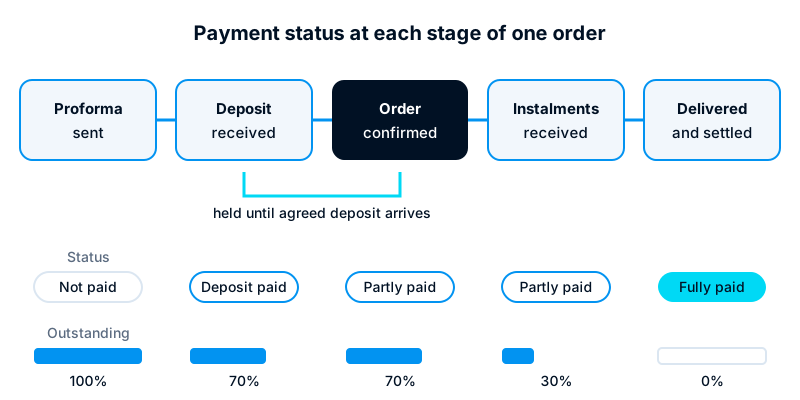
How standard Odoo handles proformas
A proforma invoice is a quotation formatted as an invoice. It tells the customer what to pay before you commit stock, start production or book a delivery. It has no accounting effect.
In Odoo, enable the proforma option in the Sales settings. A Send PRO-FORMA Invoice button then appears on quotations and sales orders. It produces a document laid out like an invoice, with your bank details and payment terms, and emails it to the customer. Nothing is posted to the ledger, and no receivable is created. That is correct accounting behaviour, but it also means Odoo has nothing to match an incoming payment against at this stage.
When the customer pays, finance usually records the receipt in one of three ways:
- as a customer payment with no invoice, which sits on the customer’s account as an outstanding credit until an invoice is posted;
- by first posting a down payment invoice from the sales order and then registering the payment against it;
- by reconciling the bank statement line directly, often to a suspense or customer account, and sorting it out later.
All three work. The difficulty is that none of them shows on the sales order itself in a way a salesperson or warehouse supervisor can read at a glance.
Down payments and online prepayment
Down payment invoices
From a confirmed sales order, the Create Invoice action offers a regular invoice or a down payment, either as a percentage of the order or as a fixed amount. Odoo creates a down payment invoice and adds a down payment line to the order. When the final invoice is raised, the down payment is deducted automatically. This is the standard, well-supported way to invoice deposits, and it has worked broadly the same way across many versions.
Two limits matter here. First, a down payment invoice is normally raised from a confirmed order, so the order is already confirmed before any money arrives. Second, the sales order shows invoice status (nothing to invoice, to invoice, fully invoiced), not payment status. You have to open each invoice to see whether it has been paid.
Online payment and prepayment
If your customers can pay by card or another online method through a payment provider connected to Odoo, you can require online payment on quotations. In recent versions, from Odoo 17 onwards, you can also set a prepayment percentage. The customer signs and pays the agreed share through the portal, and the order is confirmed when the payment succeeds. For e-commerce and card-paying customers this is the cleanest option standard Odoo offers.
It does not help when customers pay offline. Bank transfers, cheques and mobile money paid to a till or paybill number arrive outside the portal, and someone in finance has to match them by hand.
Where the gaps remain
In delivery projects for businesses that sell on deposit, the same questions come up repeatedly. Standard Odoo can answer most of them, but only by combining reports or opening several records.
- Payment status on the order. Sales staff want to see “not paid”, “deposit paid”, “partly paid” or “fully paid” on the sales order list, without opening invoices.
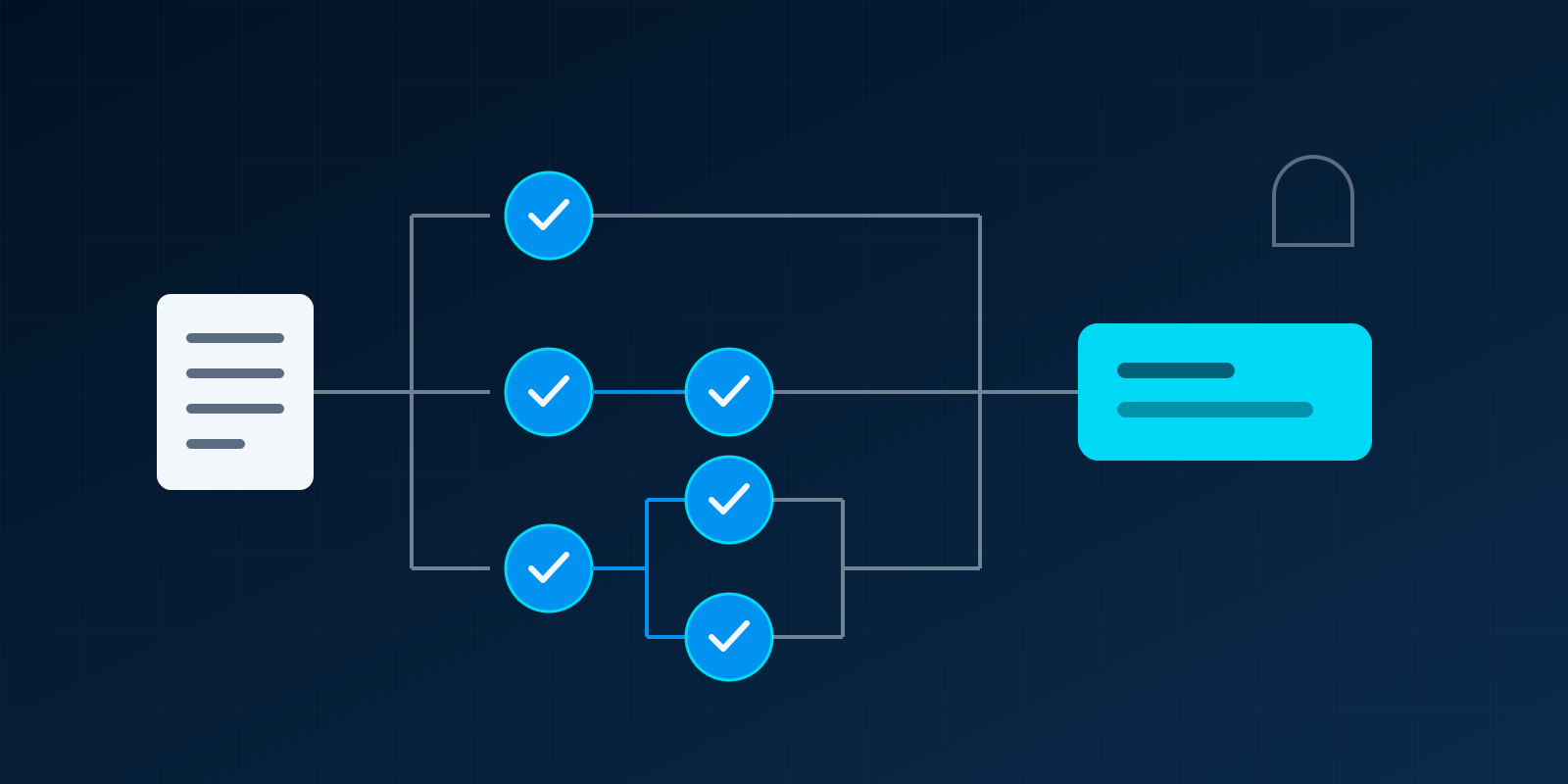
- Holding confirmation until money arrives. The business rule is often “do not confirm until 50% is received”. With offline payments, standard Odoo has no control that enforces this. It depends on people checking.
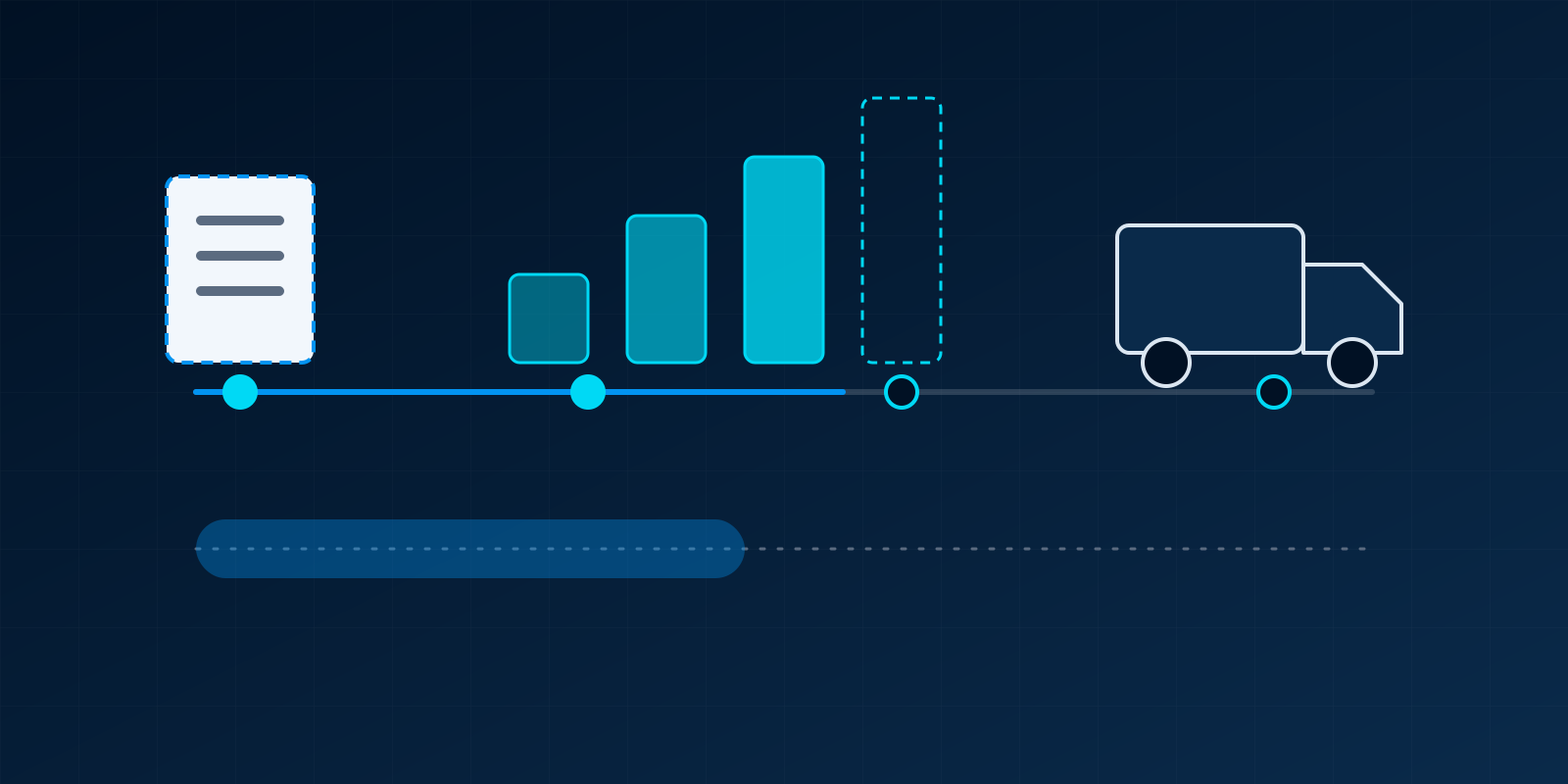
- Instalments against one order. Payment terms can split an invoice into instalments with different due dates, but that starts after an invoice is posted. Several part payments received before and after confirmation are hard to follow per order.
- Outstanding balance per order and per customer. The aged receivable report shows posted invoices. It does not include the unpaid balance of confirmed orders that have not been fully invoiced yet.
- Expected versus received. Finance wants to know, for this month, how much was expected from proformas and orders, and how much actually came in. Standard reporting is built around invoices, not around orders and their agreed payment plans.
None of these is a flaw in Odoo’s accounting. They are operational questions that sit between sales and finance, which is why they fall through the gap.
How the Payments Tracker add-on fills the gap
Our Payments Tracker add-on tracks payments against each proforma invoice without changing how Odoo accounts for anything. It works on the proformas from our Sales Proforma add-on.
- Payments recorded on the proforma. Each receipt, by bank transfer, cash or M-Pesa, is recorded on the proforma with its date and reference, and logged in the proforma’s history.
- Bank receipts matched to proformas. From a proforma, finance opens the customer’s incoming bank statement lines and allocates a receipt to it. One receipt can be split across several proformas.
- Paid amount per product. Each payment is tagged to a product on the proforma, so every line shows the amount and quantity paid for, and an allocation can never take more than that product still owes.
- Status and balance on every proforma. From the bank receipts matched to it, the proforma shows total paid, the balance and a status of no payment, partial or paid, so sales can check before releasing goods.
- Mistakes can be undone. A payment recorded against the wrong proforma can be undone, which recalculates the totals and frees the bank receipt for matching again.
The add-on creates no journal entries. Down payment invoices, reconciliation and the aged receivable report keep working exactly as before. The rule on when to confirm or deliver stays a business decision, but everyone now checks the same status. If payments for large orders also need sign-off before they are released, our post on payment approval workflows in Odoo covers that side.
Setting up the process, with or without an add-on
Whichever route you take, the process matters more than the software:
- Agree the rule. Write down how much must be paid before confirmation, before dispatch and before final handover, and who may make exceptions.
- Use one reference. Ask customers to quote the proforma or order number on every payment. It makes matching bank lines far quicker.
- Record receipts the same day. Payment status is only useful if it is current. Daily bank statement imports or bank feeds help.
- Keep accounting standard. Use down payment invoices where you need a tax document for the deposit, and let the final invoice deduct them. Do not invent journal entries to fake a status.
- Review weekly. Look at orders with balances past their agreed date, and at deposits received against orders that have not been confirmed.
Bringing sales and finance onto one view
If your team spends time asking finance whether an order has been paid, the information exists but is in the wrong place. Standard Odoo, configured carefully, gets you part of the way, especially with online prepayment. For offline deposits and part payments, the Payments Tracker add-on puts the payment status on the proforma, where sales and operations can see it. Our Odoo ERP service can configure either approach and fit it to your existing sales and accounting setup.