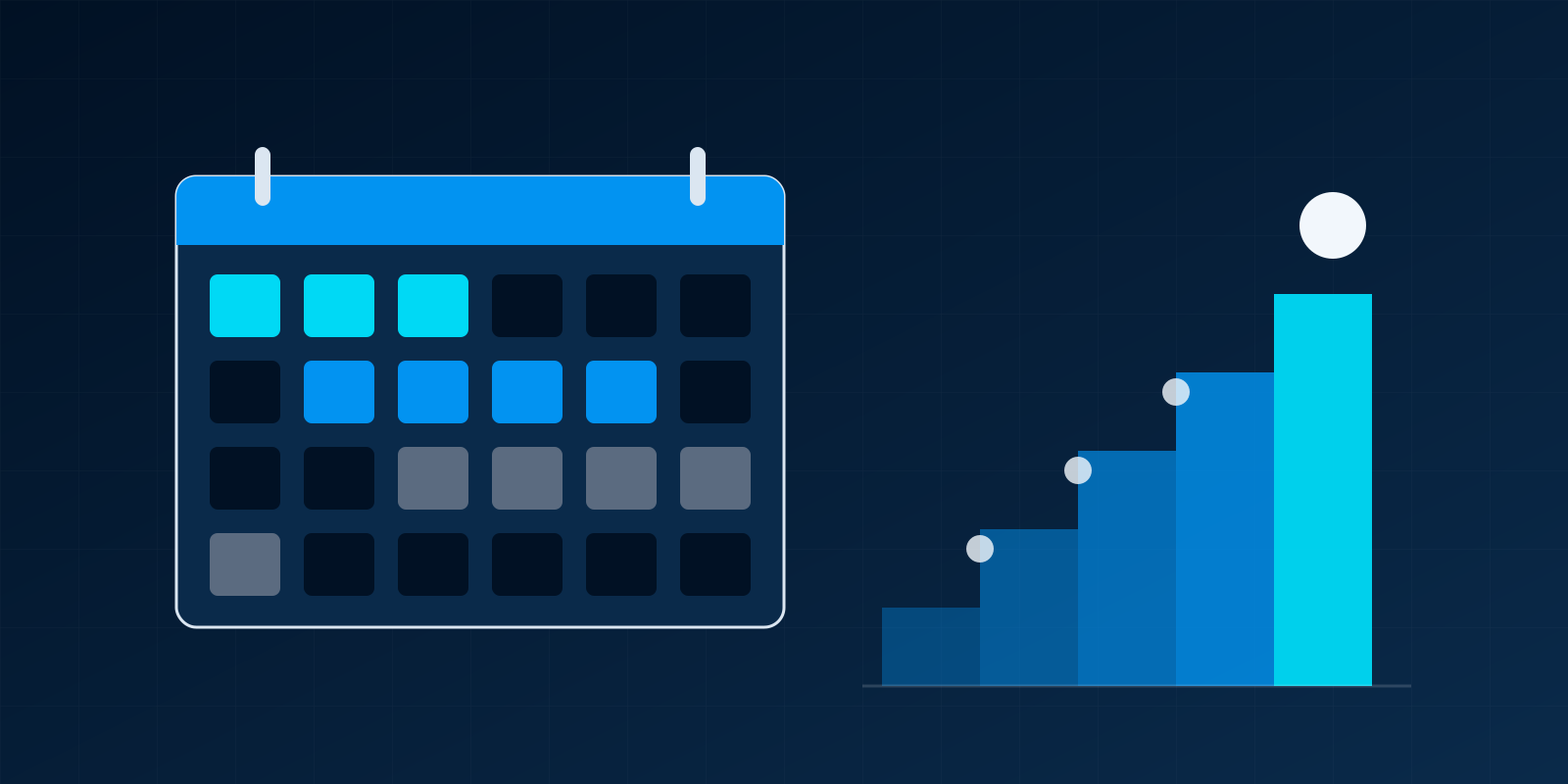
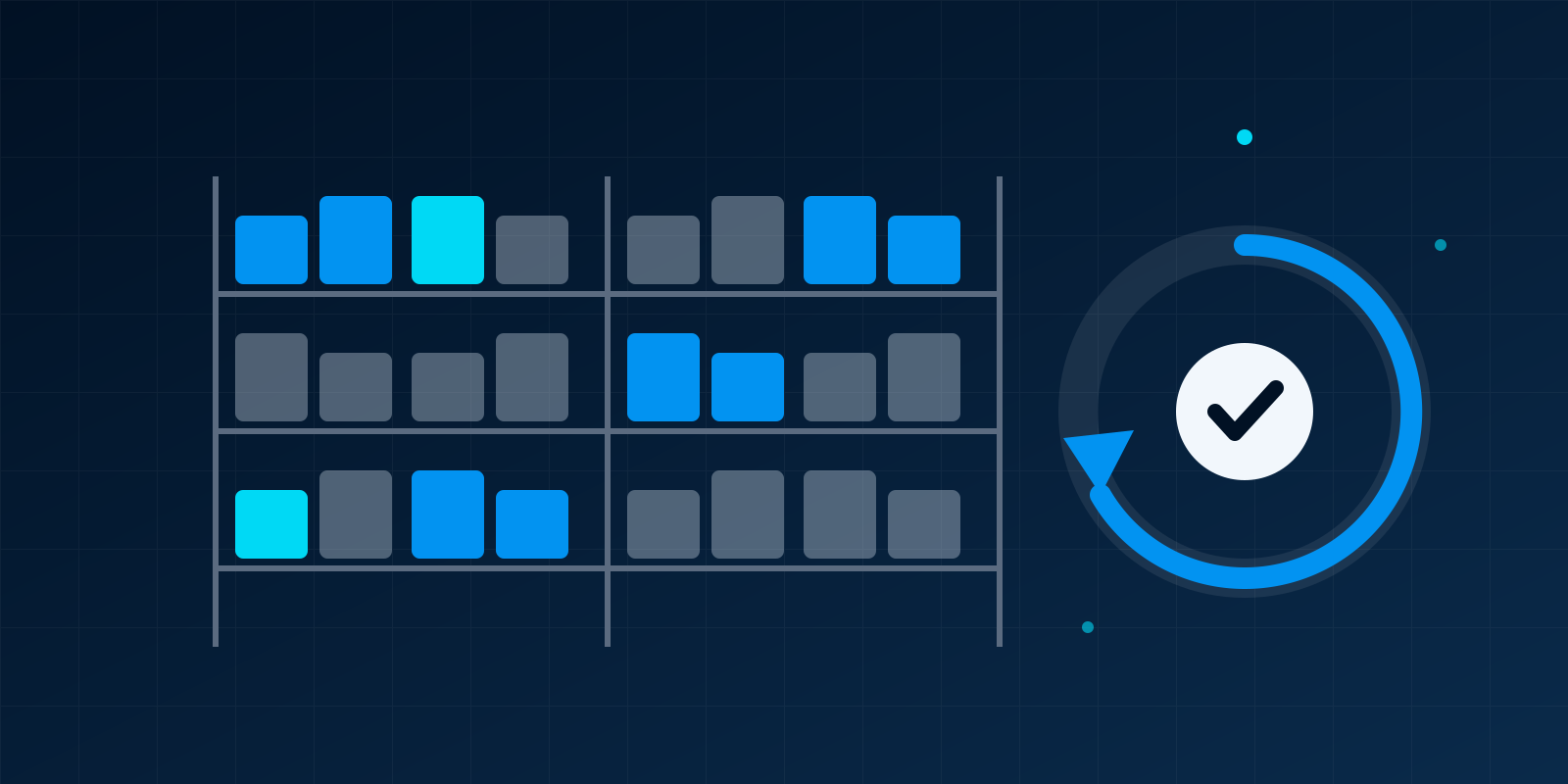
You can keep stock figures accurate in Odoo without shutting the warehouse for an annual count. Count a small part of the stock every week instead. Count your high-value items most often, count the rest less often, and let Odoo schedule the counts by product or by location. From Odoo 15 onwards, counting happens on the Physical Inventory screen. You request a count, someone enters the figure, and a stock manager applies the difference. Each applied difference becomes a stock move and, with automated valuation, a journal entry. Over a year, every item gets counted at least once, and errors are found while they are still small.
This guide is for operations managers, storekeepers and finance teams who use the Odoo Inventory app and want counts that do not stop the business.
Why the annual full count hurts
The traditional year-end count closes the store or warehouse for a day or a weekend. Everyone counts everything, often in a hurry, and often with people who rarely handle the stock. The problems are familiar:
- Sales and deliveries stop. Nothing can move while the count runs, so customers wait.
- Errors sit for a year. A wrong receipt in February is only found in December, long after anyone remembers why.
- Tired counters make mistakes. Counting thousands of lines in one go produces its own errors, which then get “corrected” into the system.
- Finance gets one large surprise. A big variance at year end is hard to explain and lands in a single period.
Cycle counting replaces that one event with small, regular counts. The warehouse keeps working, the people who know the stock do the counting, and differences are investigated within days. Some businesses still need a full count at year end for their auditors. Regular cycle counts make that count faster and its result less of a shock. Ask your auditor what they need before you drop the annual count.
Choose how to split the stock
There are two common ways to divide the stock into counting cycles. Many warehouses use both.
By value: ABC classes
Rank your products by the value that moves through the warehouse in a year: units used multiplied by unit cost. Then group them.
| Class | What it usually holds | Suggested count frequency |
|---|---|---|
| A | The small group of items that carry most of the value | Monthly |
| B | The middle group | Quarterly |
| C | The many low-value items | Once or twice a year |
The split and the frequencies are yours to set. Add items to class A that are easy to steal or easy to miscount, even if their value is modest. Standard Odoo has no ABC classification field that we would rely on. Most clients record the class as a product category, a tag or a custom field. Review the classes once a year, because products move between them.
By location
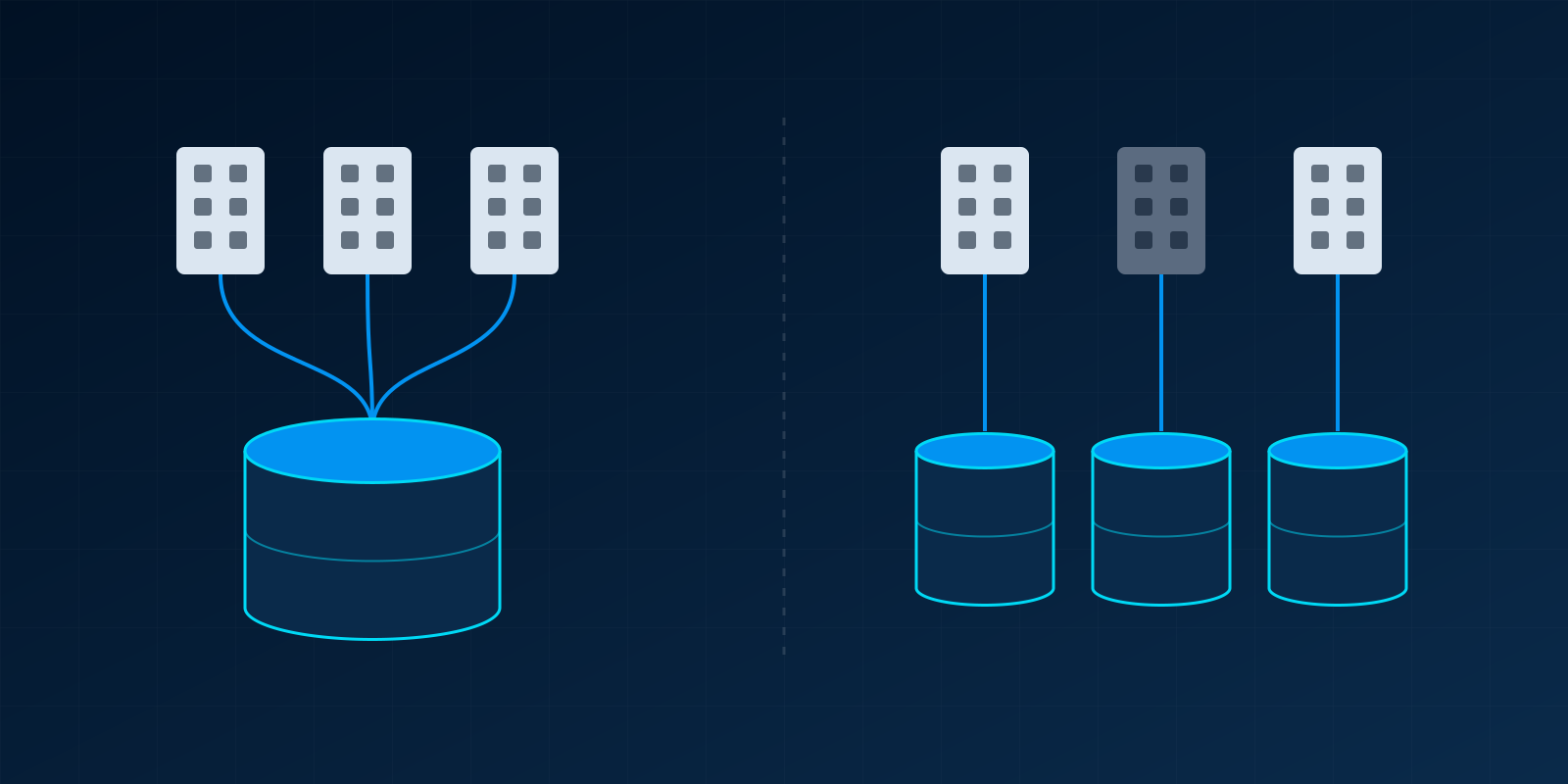
Count every product in a shelf, aisle or bin on a set schedule. Location counts suit warehouses where counters walk a route, and they catch items stored in the wrong place. In Odoo, each internal location can carry an Inventory Frequency (Days) value. Odoo uses it to calculate the next expected count for that location. You need the Storage Locations setting turned on in Inventory settings to work with locations at this level.
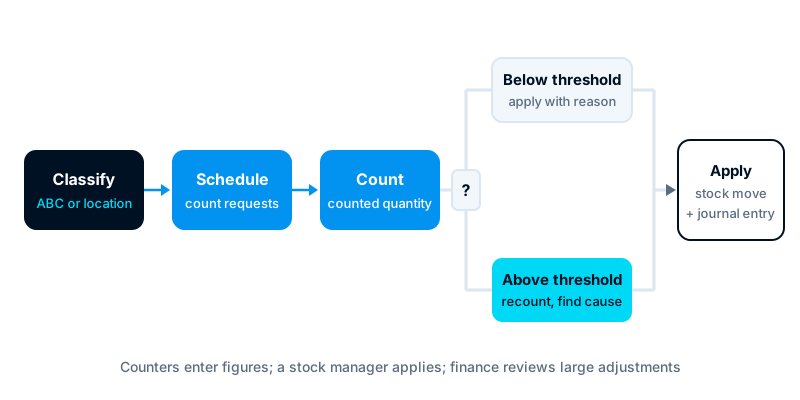
Setting up counts in Odoo
The counting screens changed in Odoo 15. Up to Odoo 14, you created an Inventory Adjustment document, chose products or locations, started it, and validated it. From Odoo 15, that document is gone. You work directly on the stock lines under Inventory > Operations > Physical Inventory. The steps below describe Odoo 15 to 20; exact menu labels vary a little between versions.
- Set the annual inventory date. In Inventory > Configuration > Settings, set the annual inventory day and month. Odoo uses it as the default date for planned counts.
- Set location frequencies. Open each internal location and enter its inventory frequency in days. A location counted monthly gets 30.
- Request counts. On the Physical Inventory screen, filter the lines you want, such as one product category or one aisle. Select them and choose Request a Count. Set a scheduled date and assign the count to a user.
- Count. The assigned user filters to their own counts, walks the shelves and types each figure into the Counted Quantity column. With the Barcode app, which is Enterprise, they can scan instead.
- Review. The Difference column shows the gap between the system quantity and the count. Group by product or location and look at the large ones first.
- Apply. Select the reviewed lines and choose Apply. Odoo asks for a reference or reason, such as “Cycle count aisle 4, week 46”. Use a consistent format so reports can be filtered later.
Ask counters not to look at the system quantity before they count. A count that starts from the expected figure tends to confirm it. Where your version lets you hide the on-hand column, hide it for counters, or give them a printed list without quantities.
Handling variances
Not every difference deserves the same effort. Agree a threshold in advance, by value or by percentage, and treat the two sides differently.
- Below the threshold: apply the adjustment and move on. Keep the reason short but specific.
- Above the threshold: recount first, ideally by a second person. If the recount agrees, look for the cause before you apply anything.
Common causes are worth checking in this order:
- Receipts or deliveries validated in Odoo but not yet physically moved, or the other way round.
- Stock picked for an order and sitting in a packing area.
- Wrong unit of measure, such as boxes counted as units.
- Items stored in the wrong location, which shows as a loss in one place and a gain in another.
- Lot or serial number mix-ups.
- Damage, expiry or theft that was never recorded.
Fix the cause where you can. If receipts are being validated before the goods arrive, a count adjustment only hides the problem until next time.
What happens in accounting
When you apply a count, Odoo creates a stock move between the counted location and a virtual location for inventory adjustments. A shortage moves stock out to that location; a surplus moves it in.
What happens next depends on the valuation method on the product category:
- Manual (periodic) valuation: no journal entry is posted. The quantities change, and finance adjusts stock value in the books at period end.
- Automated (perpetual) valuation: Odoo posts a journal entry for each applied adjustment. One side is the stock valuation account. The other side is the loss or gain account configured for inventory adjustments. Where that account is set has moved between versions, so check it with your accountant before the first count.
Review these entries at month end. A steady stream of small losses in one product group tells you more than any single count. If you close the month in Odoo, add count adjustments to your review list. Our post on multi-company Odoo also matters here: each company has its own warehouses, valuation settings and accounts, so set them up per company.
Who approves adjustments
A count adjustment changes the value of an asset. Treat it like any other financial transaction, with a separation between the person who counts and the person who approves.
- Counters enter counted quantities. They should not apply their own counts.
- A stock manager reviews and applies adjustments. In standard Odoo, applying a count needs Inventory Administrator rights, so keep that group small.
- Finance reviews adjustments above an agreed value before or after they are applied, and signs off the monthly total.
Standard Odoo has no approval stage between “counted” and “applied”. If you need one, there are three usual options. Let only managers apply counts, hold a weekly review meeting, or add a small custom module that holds large adjustments for finance. Our post on designing a payment approval workflow covers the same principles of amount bands and segregation of duties.
Common problems
- Counting while stock moves. Pause transfers for the location being counted, or count early before picking starts.
- Applying stale counts. A count entered on Monday and applied on Friday ignores the week’s movements. Apply counts promptly.
- No reasons recorded. Without a reason, nobody can tell a theft from a typing error six months later.
- Everything in one location. If stock is not split into locations in Odoo, location-based cycles are not possible. Fix the location structure first.
- Counting too much too soon. Start with class A or one aisle, then extend.
Where to start
Pick one product class or one area of the warehouse. Set its frequency, run three or four counts, and agree the variance threshold and approval rules with finance. Once the routine works, extend it to the rest of the stock.
Our Odoo ERP implementation service covers warehouse and location design, valuation settings and access rights. We can set up your first counting cycle with your team and train counters and managers on the screens they will use.