The Odoo customer portal is a self-service area where your customers sign in and see their own records. Depending on your apps, they can pay invoices, sign quotations, follow orders and deliveries, track support tickets and update their contact details. The portal comes with standard Odoo, and portal users are not charged as paid users. What each customer sees is decided by the apps you have installed, the settings in each app and the contact they are linked to. Getting that last part right matters most, because it decides whose documents they can open.
This post is for business owners, finance teams and customer service leads deciding whether to open the portal to customers.
Portal users and internal users
Odoo has three broad kinds of user:
- Internal users are your staff. They work in the back office and count towards your subscription on Odoo Enterprise.
- Portal users are customers, and sometimes vendors. They see a simplified area at
/myon your Odoo address, limited to their own records. - Public users are anonymous website visitors.
A portal user is always tied to a contact in Odoo. That contact’s place in your contact list, especially which company it belongs to, decides what they see. Portal users cannot open the back office, change your settings or see other customers’ data, provided the contacts are set up correctly.
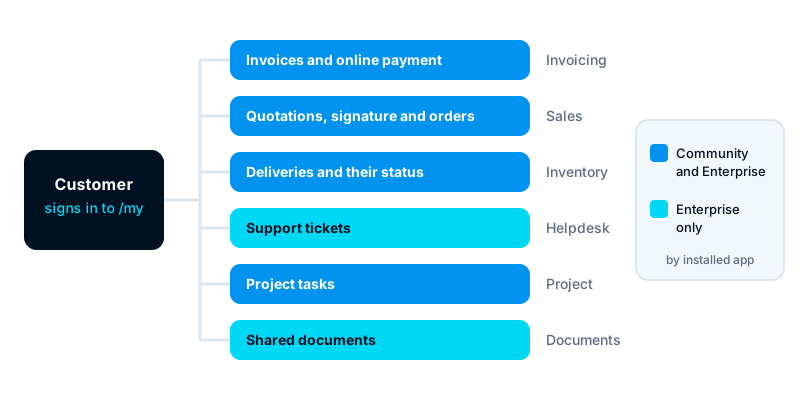
Invoices and online payment
With the Invoicing or Accounting app installed, the portal lists the customer’s invoices and credit notes. They can open each one, download the PDF and see whether it is paid.
If you set up a payment provider, such as a card processor or another supported gateway, customers can pay an invoice straight from the portal. Odoo records the payment against the invoice when the provider confirms it. Odoo 16 renamed payment acquirers to payment providers, so older guides use the earlier name. Which providers are available depends on your country, your Odoo version and the provider’s own terms. Confirm these with the provider before you promise customers a payment method.
Customers can also reach an invoice without signing in. The link in an emailed invoice carries an access token that opens that one document. That suits occasional customers who will never create a password.
If you take deposits or part-payments before delivery, our post on tracking customer payments from proforma to delivery explains how to keep those payments visible.
Quotations, signatures and orders
The Sales app gives the portal its most useful feature. You send a quotation by email, the customer opens it online, and they can accept it there.
In the Sales settings you can turn on:
- Online signature: the customer signs the quotation in the browser to confirm it.
- Online payment: the customer pays all or part of the amount to confirm the order. You can set a prepayment percentage.
When the customer signs or pays, the quotation becomes a sales order automatically. Their signature, name and the date are stored on the order. Customers can also ask questions through the chat thread under the quotation, which appears in your chatter.
Once confirmed, the order stays in the portal. The customer can see its status, the invoices linked to it and, with the Inventory app, the delivery orders and their state.
Set a validity date on quotations. An old quotation with old prices can still be accepted online until it expires.
Support tickets, projects and documents
Other apps add their own pages to the portal:
- Helpdesk (Enterprise): customers see their tickets, follow replies and add messages. You can also let them open new tickets through a website form.
- Project: you can share a project with customers so they see its tasks, and in some versions comment on them. Timesheets can be shown too, if you choose.
- Purchase: vendors with portal access can see purchase orders you have sent them.
- Documents (Enterprise): you can share files or folders with customers through a link or their portal. The Documents app is separate from the attachments on invoices and orders, which customers see on the record itself.
Some apps, and some add-ons, add portal pages of their own. Check each one before you invite customers, so you know what they will see.
Access rights and security
The portal is safe when the contacts behind it are right. The rules to understand:
- Company and person. A portal user linked to a person under a company can usually see the documents of that company, not only their own. That is useful for a finance clerk who pays the company’s invoices. It is a problem if you attached a contact from another business to the wrong company.
- One login per person. Do not share one portal login across a customer’s staff. Create a contact and a portal user for each person who needs access.
- Email address is the login. Check it carefully before you send the invitation. A typing error sends the access link to a stranger.
- Shared links. Emailed document links work without a login. Anyone the email is forwarded to can open that document. Treat these links like the documents themselves.
- Two-step sign-in. Odoo offers two-step sign-in for portal users in recent versions. Consider it for customers who see sensitive documents.
- Multi-company databases. If you run several companies in one database, check which company’s documents each portal user can see. Our post on one database or several covers the wider trade-offs.
If customers’ personal data appears in the portal, your data protection duties apply. In Kenya that means the Data Protection Act 2019. Confirm current requirements with the Office of the Data Protection Commissioner or your adviser.
Inviting customers
- Tidy the contact first. Check the company, the person, the email address and the invoice address.
- Grant access. From the contact, use the Grant portal access action. The layout of this screen changed between versions, but in each case you pick the contacts and confirm. Odoo emails each one an invitation link.
- The customer sets a password. They follow the link, choose a password and land on their portal home page.
- Check what they see. Before inviting many customers, create a test contact and sign in as that portal user in a private browser window.
Invite a small group first. Ask them what they could not find, then adjust before you roll it out to everyone.
Common problems
- Invitation not received. It is often in spam. Check your outgoing mail settings and your domain’s email authentication, and resend the invitation.
- Invitation link no longer works. Resend it from the contact rather than creating a new user.
- “I can’t see my invoice.” The invoice is usually on a different contact or a different company record. Check the partner on the invoice.
- Customer sees too much. The contact sits under the wrong company. Move it, then check again as that user.
- Duplicate contacts. A customer with two contact records may see half their documents in each. Merge the duplicates.
- Portal looks bare. Each page only appears once its app is installed and has records for that customer.
Where to start
Decide what you want customers to do themselves: pay invoices, sign quotations or follow tickets. Turn on one feature, clean the matching contacts and invite a handful of trusted customers.
Our customer experience service helps you design how customers reach you and serve themselves. Our Odoo ERP implementation service sets up the portal, payment providers and access rights in your database.